AI TEXT REMOVER
Remove text from an image free with AI.
Remove text from an image you own or may edit by brushing over a caption, label, subtitle, or date stamp. The AI text remover rebuilds the surrounding surface and keeps the before-and-after states aligned for inspection.
STEP 1
Upload your photo
Or try a sample
Loads into the editor. You choose whether to generate an edit.BEFORE / AFTER
Remove text from image: before and after
Switch views or drag to inspect the edited area. Recorded results and illustrations are clearly labeled.
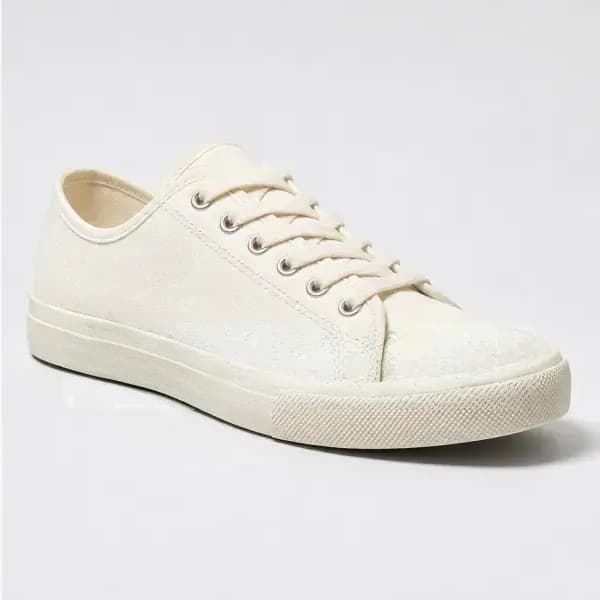
The caption was added to this test image before processing. Inspect the rebuilt fabric and the boundary of the selection.
Fictional sample images processed in a recorded product test. Compare the original, selected area and actual output. Your result will depend on the image and selection.
Open original imageRemove Text
Switch views or drag to inspect the edited area. Recorded results and illustrations are clearly labeled.
Remove text from imageHOW IT WORKS
How to remove text from an image in three steps
Confirm you may edit it
Only remove text from images you own or have permission to modify, such as your own draft, product photo, or social creative.
Brush the whole caption
Cover every character and its shadow or outline while keeping nearby product edges outside the selection.
Inspect the surface
Compare the result for reconstructed texture, gradients, and lines that need a second focused pass.
DETAILED GUIDE
How the AI text remover fills the letters
To remove text from an image, the editor needs a mask that covers every letter, outline, glow, and shadow. The model then generates a plausible replacement based on the visible surface around the words. It cannot reveal exact pixels that the caption concealed. A plain wall or sky offers simple context, while text over fabric, faces, product edges, or detailed illustrations may require several smaller selections and closer review.
Work in short lines or groups of words instead of brushing across the whole photo. Keep the selection close to the glyphs, but include anti-aliased edges and translucent shadows that would otherwise leave a ghost. When a caption crosses an important line, split the edit so the AI text remover can reconstruct one part at a time. This approach helps preserve borders, product contours, horizon lines, and repeated texture outside the marked region.
Use the comparison slider after generation to inspect the exact caption area. Check whether gradients continue smoothly, whether a repeated pattern keeps its rhythm, and whether any letter fragments remain. If the result looks soft or invents unwanted detail, restart from the original with a tighter mask. Removing text is a content edit, so only use the tool on images you own, drafts you created, or files you have clear permission to modify.
Text you can remove from your own images
Captions on social creatives
Remove an outdated caption from your own campaign draft so the clean background can be reused with updated, editable typography.
Date and time stamps
Clear a camera date stamp from a personal photo when the surrounding area provides enough consistent texture for reconstruction.
Product labels in drafts
Remove a temporary label or placeholder from an authorized product image while checking edges, gradients, and reflections before publication.
Burned-in subtitles
For a still frame you may edit, remove a short subtitle in focused sections. Detailed video restoration is outside this single-image workflow.
When to use a remove text from image tool
Use the remove text from image workflow for captions, date stamps, temporary labels, or short burned-in words on an image you own or may edit. The AI text remover is designed for text that is part of the pixels, not an editable text layer. It fills the selected letter area with a plausible continuation of the surrounding surface.
To remove text from image cleanly, cover every character plus its outline, glow, or shadow, then keep the rest of the photo outside the mask. Work in short groups when words cross product edges or detailed patterns. After the AI text remover finishes, compare the exact caption area for fragments, soft patches, and broken lines.
PRACTICAL CHECKS
Remove text from image FAQ
- Include the entire letter edge and shadow.
- Avoid selecting the product contour underneath the caption.
- Work in short text groups on detailed backgrounds.
FAQ
Can I remove a date stamp or caption?
Yes. Mark the complete text plus its outline or shadow, then review the reconstructed background before downloading.
Will it recreate hidden original pixels?
No. AI inpainting creates a plausible replacement surface from nearby pixels rather than revealing hidden information.
What should I do with text over a detailed pattern?
Use a tight selection and work in smaller areas. Repeating fabric, typography, and fine texture may need a second pass.
RELATED IMAGE TOOLS