
To change words already burned into a screenshot, don't rebuild the layout. Use a tool that reads the text first. InpaintingAI's Change Text in Image detects words locally in your browser, outlines each line it successfully recognizes, then samples the surrounding background when you type a replacement. Size and color are estimated automatically, with a locally available font. This is a flat, lightweight correction—not a reconstruction.
It works best on sharp app screens, dashboards, menus and slides with a solid background. On photographs, curved lettering, perspective, gradients and texture can reveal the sampled patch. Keep the original if a close match is not good enough.
Which method fits your screenshot?
Pick by what sits behind the words, not simply by the file extension.
- Flat UI text: use the local screenshot text editor. Select a detected line and replace its wording without rebuilding the whole interface.
- Text on a photo: a sampled flat patch may be visible. For images you own or may edit, use the text removal tool to repair the background, then add new wording in a design editor. AI repairs are generated, not exact recovery.
- A different layout or exact typography: return to the source design file. Editing pixels cannot recover its original editable layers.
- Genuine records: do not rewrite documents to mislead. Correct factual errors in the system that issued the record.
Editing text in a screenshot is a correction task. If you want a new layout, rebuild it in a design tool instead.
How to edit text in a screenshot in three steps
1. Open the tool and add your image
Open Change Text in Image and choose a JPG, PNG or WebP up to 20 MB. Start with the original screenshot, not a compressed thumbnail. Local text detection starts automatically; there is no Generate button to click. The first run may take longer while the browser downloads OCR resources.
2. Click a detected line, then type the replacement
Only successfully detected lines get a box. Faint, tiny, stylized or low-contrast text may get none. Words placed far apart can still be combined into one line. Click the box you want to change and type into Replacement text.
Everything after that is automatic: the tool estimates size and color and uses a local font or fallback. There are no font, size or color controls. Both English and Chinese text can be detected, but OCR and font matching are not guaranteed. Keep your replacement close in length to the original.
3. Check before you download
Look for a visible background patch, a width mismatch, leftover strokes and changes near neighboring text. Download the full-resolution PNG, then open that file at 100% zoom. The scaled preview alone is not enough to judge a small label. Keep the source screenshot separately.
A worked example from the real tool
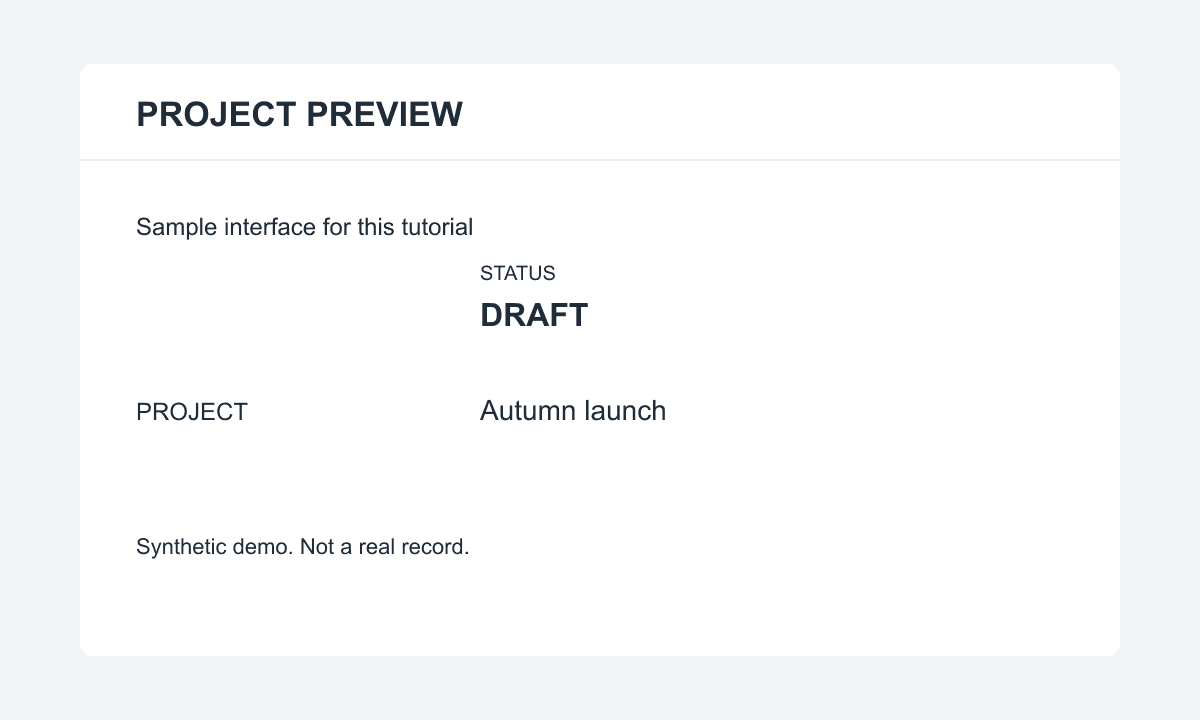
Our test uses the 1200 × 720 synthetic white-card interface above. We loaded its PNG, selected the detected DRAFT line, typed READY and downloaded the result. This is an actual local-browser export, not an AI-generated after image.
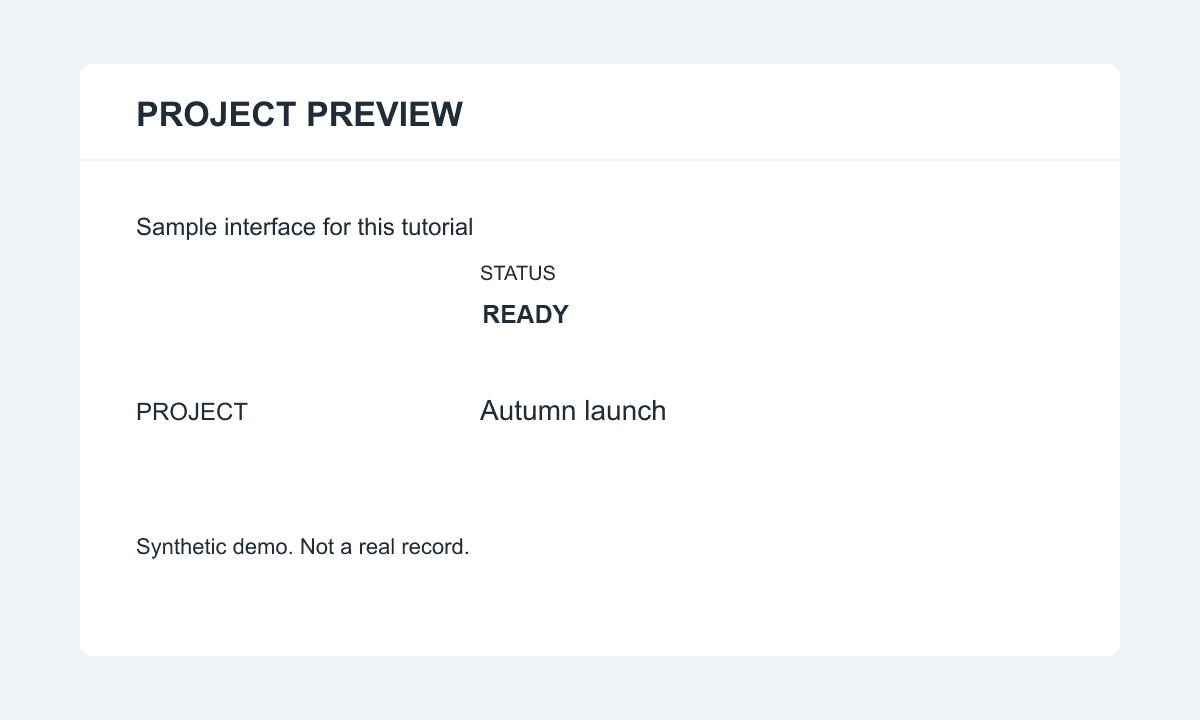
The export kept the original dimensions. READY appears in the same general position on the white card, with no obvious colored background block at normal viewing size. Its letter shapes and width differ from DRAFT. This English-only example does not validate every Chinese font or complex background; check your own export before sharing it.
Download the synthetic test PNG and follow the three steps to compare your browser's result.
Troubleshooting
- A line has no box: it was not detected confidently. Use a sharper original or a tighter crop. Enlarging a blurry screenshot does not recover missing letter detail.
- Two fields share one box: detection is line-based, not form-aware. A crop may help isolate one field, but its export is also cropped; use a design editor if you must preserve the full layout.
- Wrong size, weight or typeface: there is no manual setting to fix it here. Try similar-length wording or return to the source file for exact typography.
- Old strokes remain: the detected bounds or background sample may have missed pixels. Longer replacement text can hide the problem without fixing it. Use a cleaner source or remove the original text fully before adding new wording.
- A patch shows on a gradient or photo: a flat background sample cannot reconstruct texture. Keep the original, or use a separate inpainting editor and inspect the generated repair carefully.
Limits, responsible use and cost
OCR only boxes the lines it detects; it does not understand or rebuild a layout. The sampled background, estimated size and color, and automatic font fallback can produce a close match, not the exact original typeface.
It cannot recover hidden content. Words covered by another object cannot be reliably read from the visible pixels. Replacing a line with wording you supply is not proof of what was originally there.
Do not use it to forge or mislead. Editing a real invoice, statement, receipt, contract, ID or ticket does not correct the underlying record. Fix genuine errors at the source and use synthetic images for practice.
Text recognition, replacement and export run locally in your browser; image pixels are not uploaded for this workflow. OCR software and language resources still need to download. The local tool is free and does not consume AI credits. Separate AI removal flows follow the pricing page.
Try it on a screenshot of your own—or a mockup you made. For another task, browse all focused tools.
Frequently asked questions
Does it work with text in Chinese?
Yes. Detected English and Chinese lines get boxes. The font for each line is handled automatically using locally available fonts; you cannot select a specific Chinese typeface.
What file types and sizes are accepted?
JPG, PNG and WebP, up to 20 MB. Larger files are rejected. Resize or take a smaller screenshot first, while keeping the words readable.
Can I pick a font, size or color, or get the exact original font back?
No. The tool estimates size and color from the line you replaced and renders the new text with a locally available font. There are no font, size or color controls. Expect a close match, not a pixel-identical reproduction.
Is it free, and does it use AI credits?
Text replacement runs locally in your browser and is free. It does not consume AI credits. Separate AI-based removal tools follow the site's pricing and credit rules.