
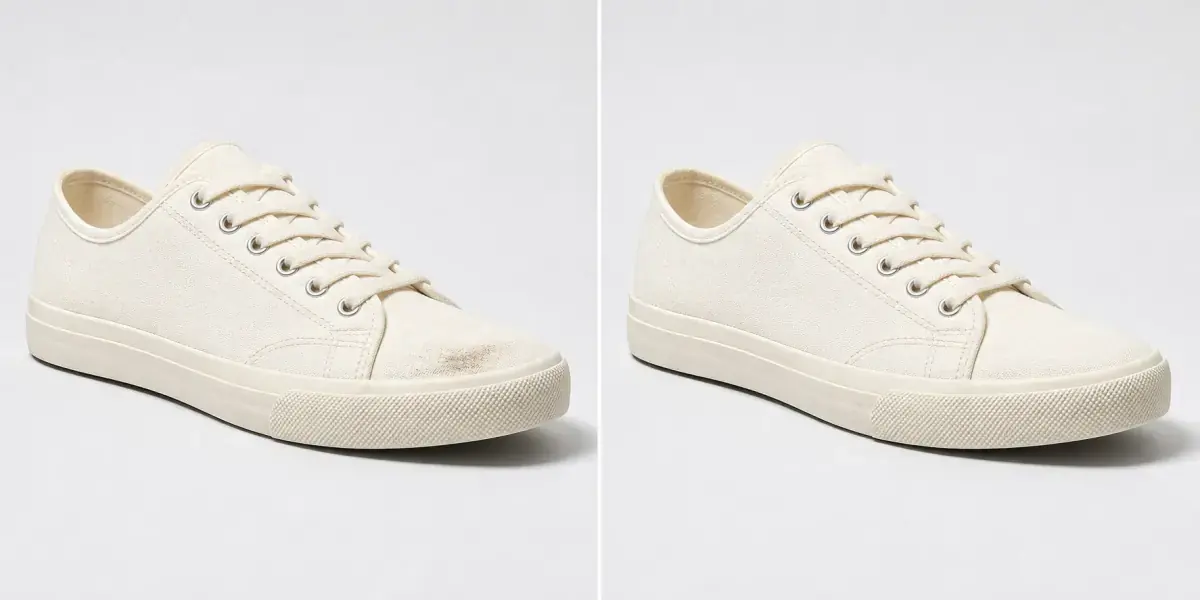
Product-photo cleanup is a precision job. The goal is to remove something that distracts from the product—not to redesign the item, hide a material defect, or make the listing inaccurate. A tight local mask and an aligned before-and-after review make that boundary visible before the image reaches a storefront, catalog, or campaign.
Decide what is safe to clean
Dust on a backdrop, a loose cable, temporary prop, isolated studio scuff, or outdated overlay can be a reasonable cleanup target. A crack, stain, wear mark, color difference, missing accessory, or other condition a buyer would rely on should not be silently removed from a sales image.
Keep a reference checklist before editing: silhouette, dimensions, seams, buttons, ports, labels, branding, surface texture, color, highlights, shadows, and package contents. The final image should still represent the same item and offer.
Clean a product photo in five steps
- Use the original capture. Start with the largest clean camera or design export, not a compressed marketplace screenshot.
- Select one distraction. Choose one dust mark, cable, temporary label, or background prop.
- Stay inside the safe boundary. Include the full distraction and its shadow without covering the product contour or real identifying detail.
- Match the local surface. Keep the instruction short: continue the white backdrop, clean the same leather, or rebuild the table surface.
- Compare before the next edit. Check edges, color, texture, reflections, and product identity at 100% zoom.
CLEAN ONE DISTRACTION
Protect the product edge and rebuild only the marked area.
Open the object removerHandle labels, captions, and packaging text separately
Text already merged into JPG, PNG, or WebP pixels requires image reconstruction. Use the image text remover for an authorized caption, temporary placeholder, or date stamp. Keep required ingredient lists, warnings, model numbers, certifications, and product branding accurate.
When a source design file still exists, edit the real text layer instead. Reconstructing pixels is less accurate than changing the original typography, and it cannot reveal exact image detail hidden behind a flattened label.
Product-photo accuracy checklist
- The silhouette, proportions, and number of parts match the original.
- Brand marks, labels, seams, controls, ports, and packaging remain accurate.
- Material texture, color, stitching, reflections, and highlights are unchanged outside the mask.
- No actual defect or condition relevant to a buyer has been concealed.
- The backdrop has no repeated patches, halos, broken horizon, or soft rectangle.
- The edited export is compared against the untouched source at full size.
Export consistently across a product set
Keep crop, background tone, padding, shadow direction, and output dimensions consistent across the catalog. Export a new file instead of overwriting the master. Check one desktop product page and one mobile card because a cleanup artifact near the edge may become more visible when the image is cropped responsively.
For a broader removal process, use the unwanted-object guide. If the product surface itself is scratched in an archival or creative image rather than a live sales listing, the damaged photo repair tool provides a more appropriate local repair instruction.
Frequently asked questions
What can I remove from a product photo?
Typical cleanup targets include dust, isolated scuffs, temporary labels, loose cables, small props, backdrop marks, and other non-product distractions.
Can AI cleanup change the product itself?
It can if the mask covers the product edge, branding, texture, or reflection. Keep selections tight and compare the result against the original before publishing.
Should I remove a real defect from a sales photo?
Do not hide a material defect when the edited image would mislead a buyer. Use cleanup for presentation debris or authorized creative work while keeping the product representation accurate.
Can I remove a temporary label or caption?
Yes when you own or may edit the image. If the original design file still has an editable text layer, change that layer instead of reconstructing pixels.