Add your logo to an image or PDF.
Upload an image containing your logo and a destination file. We extract and place the logo, then you can adjust its position, size or text.
PNG, JPG or WebP · up to 30 MB
No cutout needed. We extract the logo for you.
PDF, PNG, JPG or WebP · up to 30 MB / 50 pages
Choose the file you want to add the logo to.
Free extraction & preview · Export 50 credits
Size adapted to your file · Lower right · First PDF page onlyFrom the original to your next file.


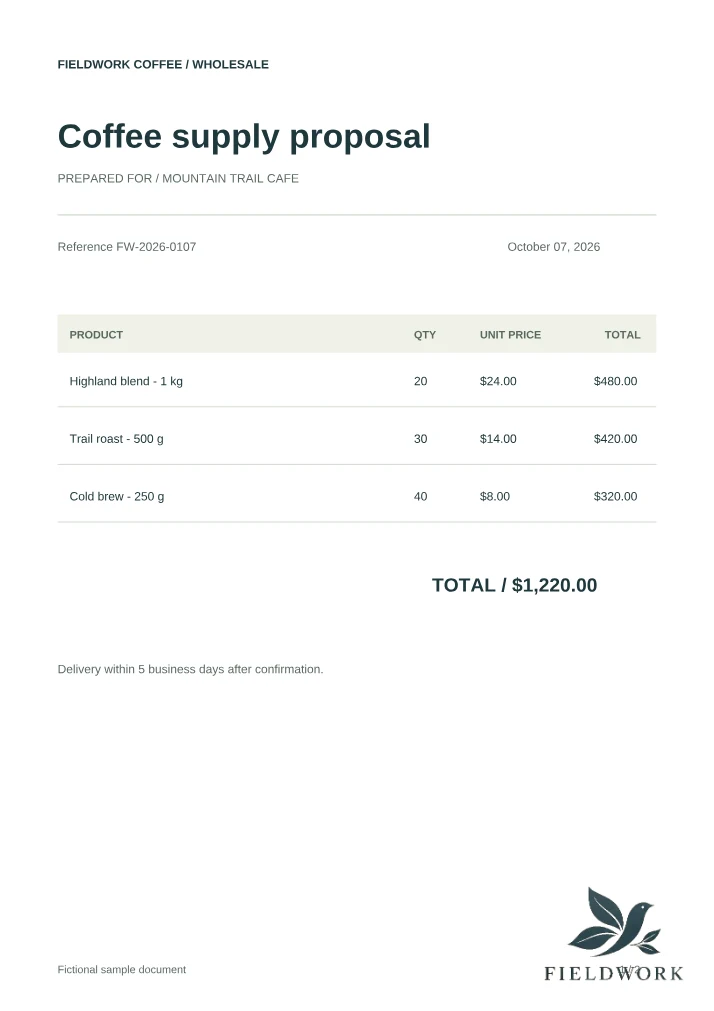

Fictional sample files · Local extraction and placement
Files stay in your browser. Export authorization sends only a file fingerprint and placement settings, not your files.
See the whole workflow.
From an image containing your logo to a finished document, in one workspace.
- Add an image containing your logo
- Add the destination PDF
- Move and resize the logo
- Choose PDF, PNG or JPG
How to add a logo in three steps.
Add an image with your logo
Use PNG, JPG or WebP. We try to extract the logo locally; you can adjust the area if the background is complex.
Add your photo or PDF
See the first draft immediately: a size suited to your file, at the bottom right. For PDFs, only the first page has a logo by default.
Adjust, then export
Move, resize, rotate or change opacity. Preview and adjustments are free; export your finished file for 50 credits.
Add a logo to a photo or image.
Put your brand on a product photo, campaign image or presentation graphic without switching tools.
- PNG, JPG and WebP targets
- Original size by default; restore it at any time
- Export as PNG, JPG or PDF
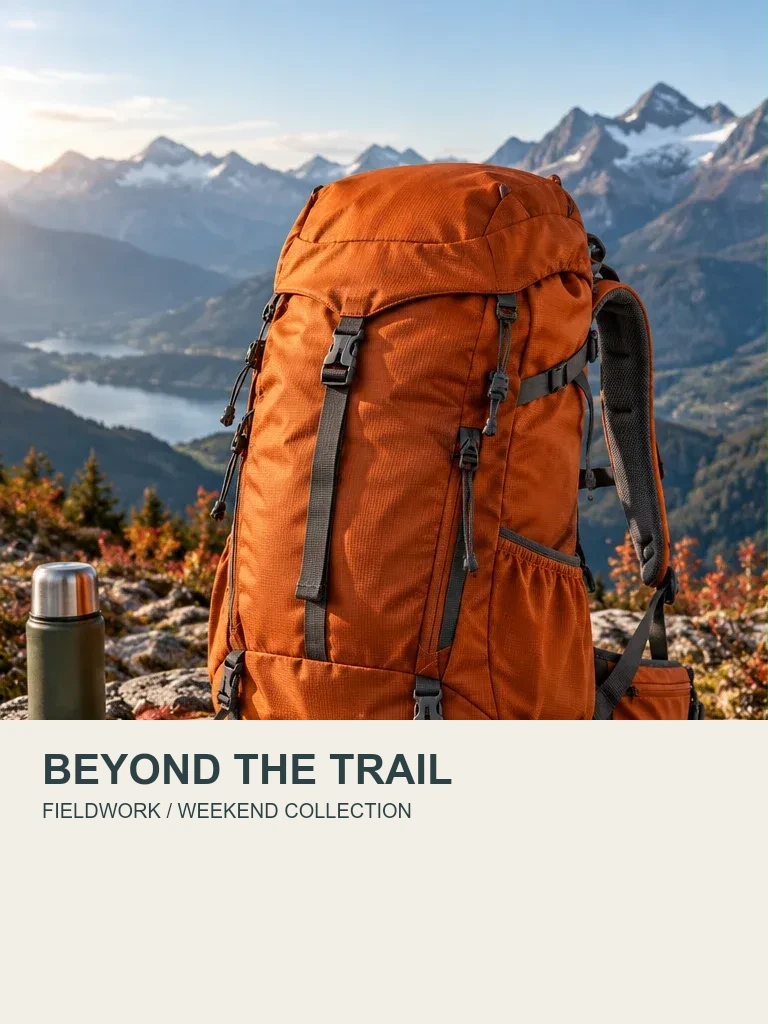
Add a logo or logo watermark to a PDF.
Place your logo on a proposal or document. Start with the first page, then copy it to selected pages or the entire PDF.
- Only the first page changes by default
- Apply the same placement to selected or all pages
- Export the complete PDF, or its pages as PNG/JPG
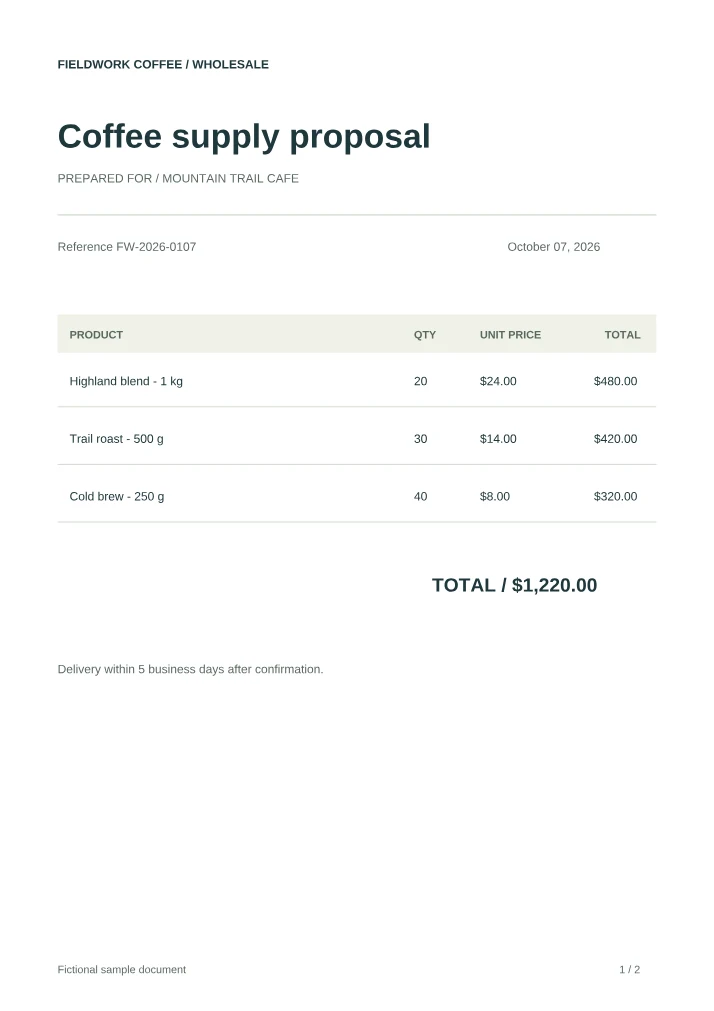
Fictional sample files. Results use the same local extraction and placement functions as this tool.
Automatic logo extraction, with room to adjust.
You do not need a transparent PNG first. A clear logo on a plain background works best. If the result includes nearby content, adjust the extraction area or use the original transparent asset.
Control position, size, rotation and opacity.
Drag the logo directly in the preview or choose one of six positions. Resize it without changing its proportions, rotate it, or lower its opacity to use it as a logo watermark.
Add the logo to selected pages or the whole PDF.
The first page is selected by default. Open Apply to other pages, choose specific pages or all pages, and apply the current placement. Size, relative position, rotation and opacity carry over; pages of different sizes can still need adjustment. Check each selected page before exporting. Pages you do not select remain unchanged, and the complete PDF is included in the export.
Correct numbers, Chinese or English inside the logo.
Open Logo text to see recognized lettering. Edit only the characters you know are incorrect, preview the result, then apply it. Unreadable characters appear as question marks, not invented text. When a matching character is available in the image, the repair can reuse it to better match the original lettering. Results are not guaranteed to reproduce the exact typeface: inspect the preview and undo if it does not match. No repair is required to export the original extraction.
Supported formats, privacy and pricing.
- Source image
- PNG, JPG or WebP, up to 30 MB. One image containing the logo.
- Target file
- One PDF, PNG, JPG or WebP, up to 30 MB. PDFs support 1–50 pages; an image or rendered PDF page is limited to 25 megapixels.
- Export
- PDF, PNG or JPG. Multi-page image exports arrive in a ZIP; all document pages are included.
- Local processing
- Your original files stay in the browser. Export authorization sends file fingerprints and placement settings, not the files themselves.
Before you start
One target file at a time. No batch image processing, tiled watermarks, independent text watermarks, HEIC or SVG. Use an unlocked PDF; editing a digitally signed PDF invalidates its signature. Only use logos and documents you own or have permission to edit.
Logo placement FAQ.
Can I add a logo to an image or PDF for free?
Import, extraction, preview and adjustments are free, with no sign-in required. Downloading the finished file requires an account and 50 credits; the same composition is not charged again for another format or repeat download while this page is open.
Do I need a transparent PNG of my logo?
No. Add an image containing your logo in PNG, JPG or WebP. The tool tries local extraction automatically. Clear logos on plain backgrounds work best; complex scenes may need an adjusted extraction area or the original transparent asset.
Can I put the logo on every page of a PDF?
Yes. The first page is selected by default. Use Apply to other pages to select specific pages or all pages, then apply the placement. Other pages keep their settings until you apply it.
How is the default logo size chosen?
Image targets keep the extracted pixel size. PDFs use print-size metadata when available; without it, the size is based on the page rather than an assumed print resolution. You can resize the logo or restore its default size. This does not recover an unknown physical size.
Can I add a watermark to a photo or PDF?
You can use the extracted logo as an image watermark and adjust its opacity, position and rotation. Independent text watermarks and repeated tiled watermarks are not supported.
Are my source files uploaded?
No. Extraction, preview and composition run in your browser. The download authorization request contains file fingerprints and placement settings, not your source image, target file or completed document.
Can I correct the text inside my logo?
The Logo text panel supports numbers, Chinese and English text. Edit the recognized text, preview the repair and check it before applying. Recognition and repair can be imperfect; the tool does not guess missing content.
Can I process many images or use HEIC and SVG?
This tool works with one target file at a time, not batches of images. Source images support PNG, JPG and WebP; targets support those formats and PDF. Convert HEIC or SVG to a supported image format first.