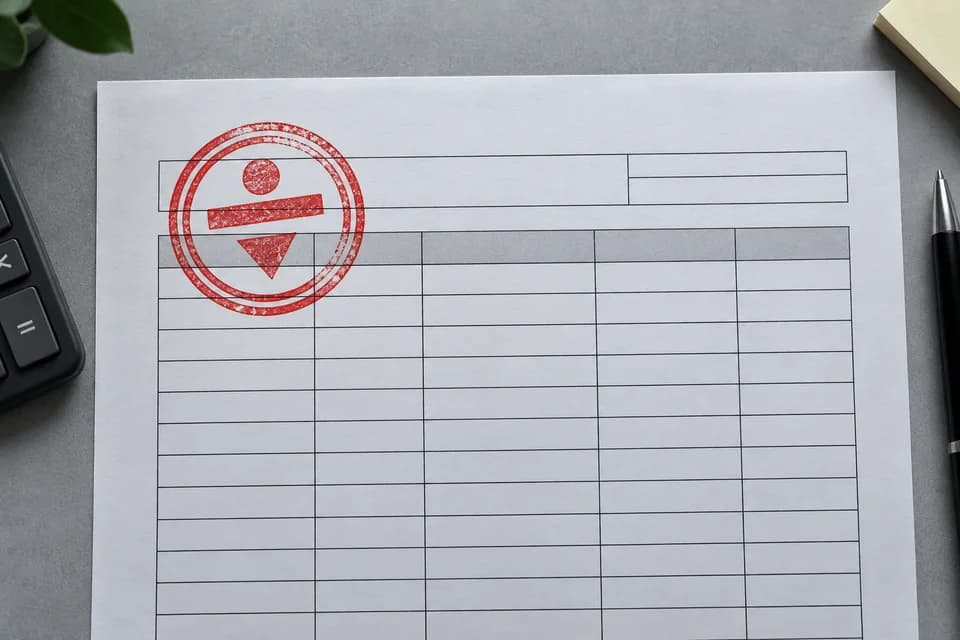
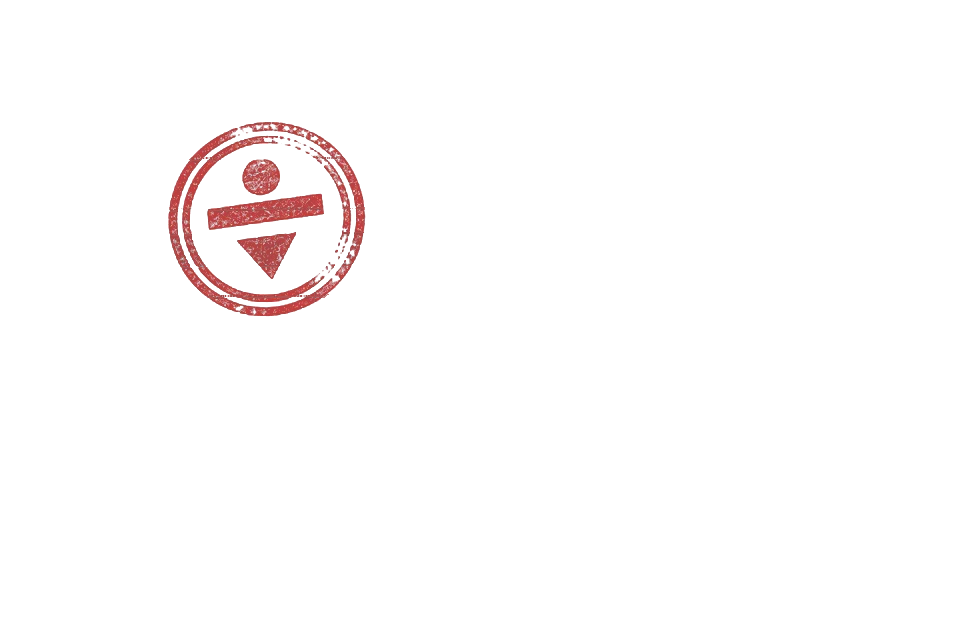
Stamp over table linesLocal color layer
Upload once. Local analysis handles clear color layers, while SAM 2 point selection separates objects from busy scenes.

STEP 1
Local analysis stays in this browser.
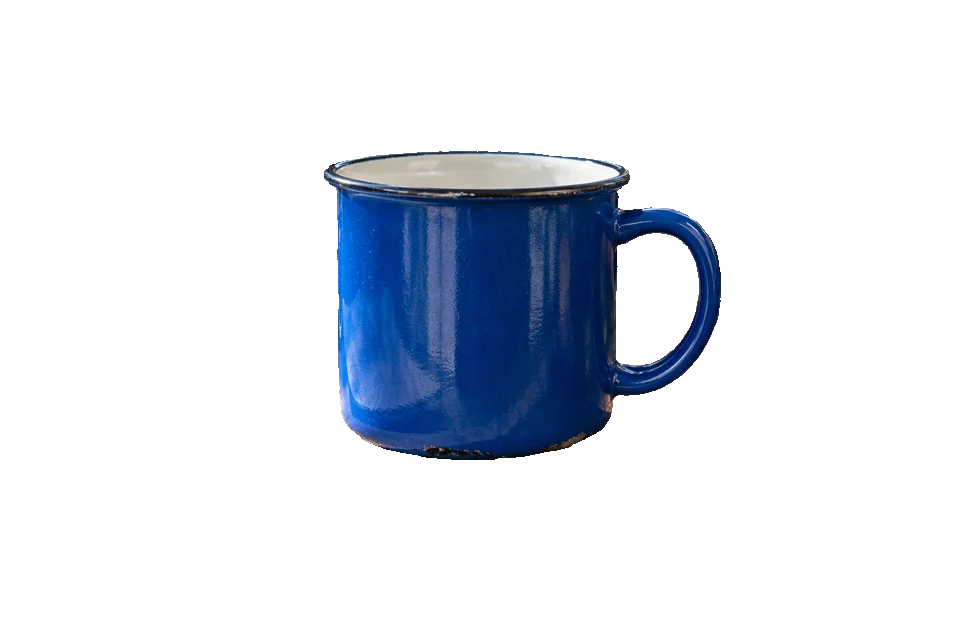
These animated cases move from local color separation to SAM 2 point selection as the scene becomes more complex.

The tool starts locally and asks for one target click only when the scene needs AI.
Choose a JPG, PNG, or WebP. Local analysis starts immediately.
Use the local result, or choose AI point select and click the object once.
Review the checkerboard preview and save a transparent PNG.
The first layer detects a dominant color layer or a consistent edge background locally in the browser. It is fast for stamps, icons, and products photographed against a clean sweep.
If that result is unreliable, AI point select sends one foreground point to SAM 2. The model uses the point to build a mask around the object, including objects surrounded by texture and clutter.
Local color separation handles simple layers; point selection extends the tool to busy photos.
Make a picture cutout from a screenshot or mockup with automatic local color separation.
Extract a single-color stamp from neutral paper while suppressing page tones and table lines.
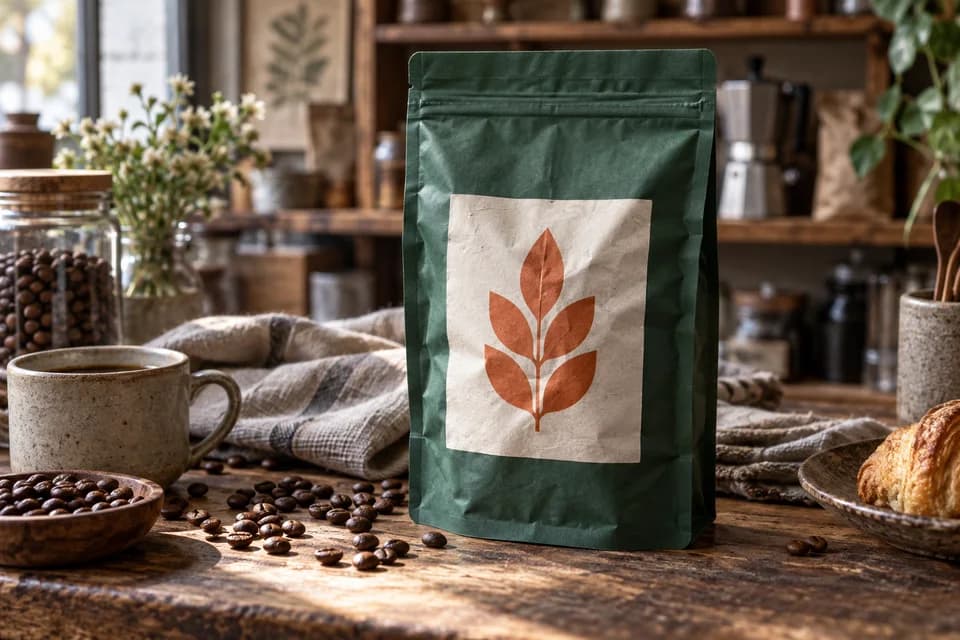
Use AI point select when packaging, props, texture, or uneven light surrounds the product.
Cut out a mark from a label, panel, screenshot, or design proof with a local-first workflow.
Colored stamps, icons, and objects against a consistent edge background stay on-device. Busy photos can use a foreground point prompt with SAM 2.
For transparent glass, fine hair, dense fur, or several touching subjects, inspect the mask closely and retry with a more central point when necessary.
Answers about selection, transparency, privacy, and the source images that work best.
Upload a JPG, PNG, or WebP. Local analysis first tries color-layer or edge-background separation. For a busy scene, choose AI point select and click the object once.
Image cutout keeps the selected object and discards a simple surrounding background. Object removal discards the selected object and rebuilds the scene behind it.
The first pass runs locally without AI. If you choose AI point select, the image is temporarily uploaded to fal.ai and segmented with SAM 2.
Yes. Use AI point select for an object surrounded by clutter, texture, or several colors. Fine hair, transparent glass, and motion blur can still need edge cleanup.
You can use JPG, PNG, and WebP images up to 20 MB. The exported file is a PNG with real transparency.
Local analysis stays in your browser. The image is uploaded for temporary processing only when you explicitly choose AI point select.