
You may have a product photo, screenshot, or scanned page that contains the only copy of a logo you can find. If you own the mark or have permission to reuse it, a logo extractor can turn that visible artwork into a transparent PNG for a website, presentation, or approved design file.
The job is easier when the logo sits on a white, cream, or another flat background. The browser can compare each pixel with that background color and make close matches transparent. It cannot recover a hidden vector file, invent missing edges, or grant rights to a mark you do not own.
What does it mean to extract a logo?
Logo extraction has two parts. First, you crop the source down to the smallest useful rectangle around the mark. Second, you remove unwanted pixels inside that rectangle so the area around the logo becomes transparent. The result is normally a PNG because JPEG does not support transparency.
This is different from inpainting. An object or watermark remover discards the selected object and generates a plausible replacement for the covered background. A logo extractor does the opposite: it keeps the selected mark and discards the surrounding background. It is also different from vectorization, which traces shapes into editable SVG or design paths.
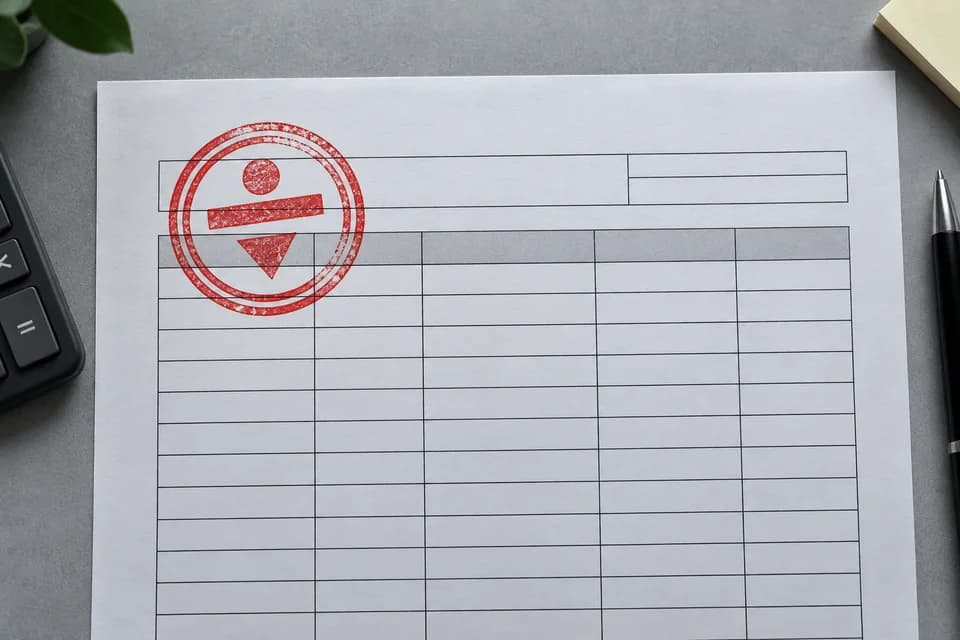
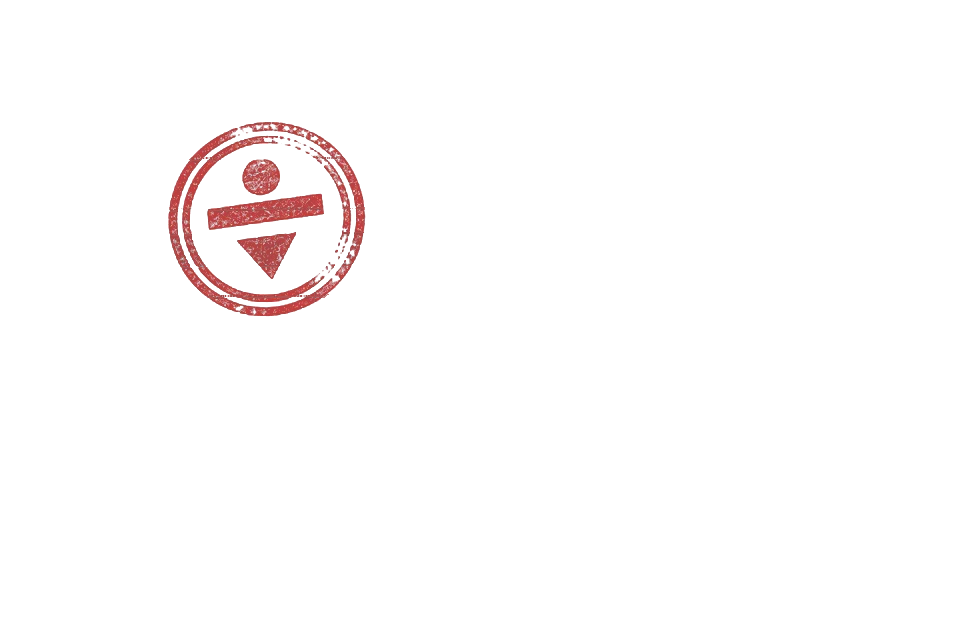




How to extract a logo from an image in four steps
- Upload the clearest source you have. Open the free logo extractor and choose a JPG, PNG, or WebP up to 20 MB. A larger, sharper source gives the edge filter more real pixels to preserve.
- Drag a frame around the complete logo. Start just outside one corner and finish outside the opposite corner. Leave a narrow margin, but avoid including unrelated text, packaging edges, or page lines when possible.
- Choose the extraction method. Remove background works for one flat color behind a multicolor logo. Keep one logo color works for red or blue stamps and other single-color marks on neutral paper.
- Inspect and download. Tune tolerance until the checkerboard is visible around the mark. Look for halos and missing pale details, then download the transparent PNG.
Frame one logo and preview the transparent result.
Open the logo extractorRemove background or keep one color?
Remove background for multicolor logos
Choose this method when the mark uses several colors but the area behind it is consistent. Match the color input to the label, page, or screenshot background. Increase tolerance slowly. A higher value removes a wider range of similar shades, including soft paper texture or compression variation.
If the mark has pale cream, gray, or pastel details, check those details after every adjustment. They can be close enough to the background to disappear. Lower the tolerance before trying a different source.
Keep one logo color for stamps and seals
This method starts from the logo color instead of the background. It keeps pixels near the chosen hue and turns neutral content transparent. On a scanned page, it can retain a red stamp while suppressing black table lines and off-white paper. It is not suitable for a multicolor mark because colors far from the chosen hue will be removed.
A photographed stamp may contain shadows, faded ink, or mixed lighting. Choose a representative midtone from the impression and use moderate tolerance. If a very faint edge disappears, a cleaner scan is usually better than pushing the control to its maximum.
Which source images work best?
- A complete logo with no object covering its edges.
- Clear contrast between the mark and its background.
- A flat white, cream, or single-color label behind the logo.
- A sharp scan or photo with limited compression artifacts.
- Enough resolution for the intended display size.
A logo placed directly over a busy photograph is a different segmentation problem. Color tolerance may remove parts of the subject or retain pieces of the scene. A dedicated subject background remover or the original design file will normally give a cleaner result.
What our three extraction tests covered
We kept three reproducible input and output pairs with the implementation. They cover a clay-colored emblem on an off-white product label, a red stamp over neutral table lines, and a three-color mark on a warm flat background. Each test used the same pixel functions as the browser editor.
The retained verification record reports the crop dimensions and alpha-channel measurements for every case. Those measurements confirm that both modes create real transparent pixels and preserve an opaque mark region; they are deterministic checks, not subjective design scores.
A quick transparent-logo quality check
- Every intended letter, symbol, and outside edge remains visible.
- No rectangular patch of the old background remains.
- The edge has no bright halo on a dark preview.
- Pale logo details remain at normal size and 100% zoom.
- The PNG dimensions are large enough for the final placement.
Review the result on both a light and dark background. A white fringe can disappear against a white page and become obvious on a dark slide. If the edge looks rough, return to the source, tighten the crop, or lower the tolerance instead of repeatedly editing the output.
When you should use the original asset instead
Extraction is a recovery workflow, not a replacement for source design files. Ask for the original SVG, PDF, EPS, or transparent PNG when the logo must be printed at a large size, recolored precisely, or delivered as part of a formal brand system. A raster extraction cannot restore curves and type as editable paths.
Use only material you are allowed to process. Reusing another company’s logo can create trademark or endorsement problems. Official seals, signatures, and approval marks require particular care: extraction must never be used to falsify a document or imply authorization.
Logo extraction FAQ
Can I extract a logo from a photo for free?
Yes. The InpaintingAI logo extractor runs in your browser, does not require a login, and lets you download the selected result as a transparent PNG.
Can I turn a JPG logo into a transparent PNG?
Yes, when the logo is visible on a reasonably flat background. Select the logo, match the background color, and adjust tolerance until the checkerboard shows through around the mark.
Why does part of my logo disappear?
The background tolerance may be too high, especially when pale logo colors are close to the background. Lower the setting or use Keep one logo color for a single-color mark.
Is extracting a logo the same as vectorizing it?
No. The extractor creates a raster PNG with transparency. It does not trace the design into SVG paths or restore an original vector file.
Can I extract a company logo or official seal?
Only extract and reuse marks you own or are authorized to use. A copied logo does not grant trademark rights, and an extracted seal must never be used to falsify approval or document authenticity.




