
PDF fixes a page for viewing, while Word reflows paragraphs, tables, and images for editing. A useful PDF to Word converter rebuilds editable document elements instead of placing each PDF page into Word as one flat screenshot.
A quick overview of the workflow
- Open the free PDF to Word converter online.
- Choose one text-based or already-OCRed PDF up to 20 MB.
- Select Convert to Word and wait for document analysis to finish.
- Download the generated .docx file.
- Open it in Word, Google Docs, or LibreOffice and compare it with the PDF.
Choose the right PDF for conversion
Native PDFs and already-OCRed files produce editable paragraphs. Image-only scans are not OCR-enabled in this version.
PDF uses fixed coordinates; Word reflows content. Dense statements, borderless tables, and overlapping graphics may need cleanup.
A DOCX is a new document and cannot retain the original PDF digital signature as valid.
The current upload limit is 20 MB per PDF. Large or complex files can also reach the conversion time limit.
Open the free PDF to Word converter
The converter does not ask for an account, email address, or payment step. The upload card shows the file limit and the expected output before conversion begins.
Open the PDF to Word converter
How to convert PDF to Word online
1. Choose the PDF
Select Choose PDF and upload one file up to 20 MB. A text-based or already-OCRed document gives the converter more structure to rebuild.
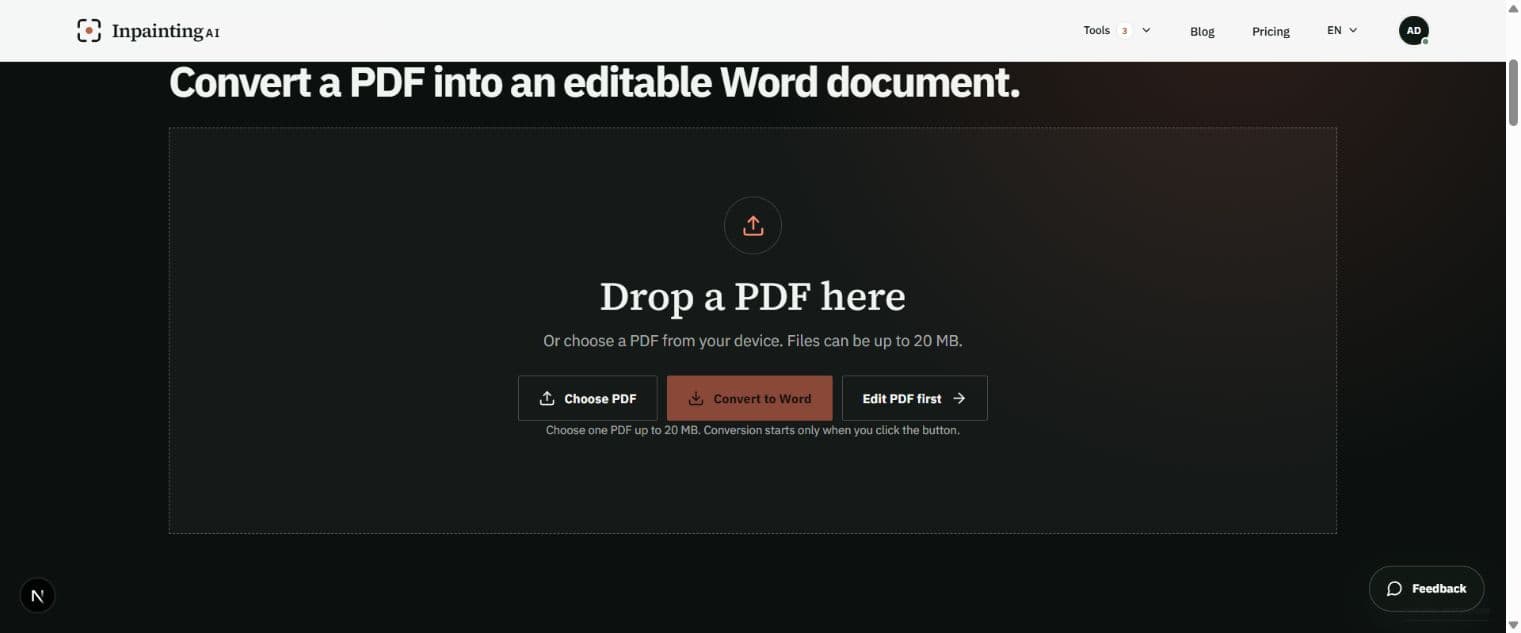 1Click Choose PDF and select one text-based PDF up to 20 MB.
2. Confirm the selected file
Check the filename and size shown in the upload card. If you chose the wrong document, remove it and select the correct source before conversion.
2Confirm the filename and size that appear in this upload area.3. Start conversion
Select Convert to Word. The server analyzes page text, images, table regions, and layout, then creates a new DOCX in a temporary working directory.
3Click Convert to Word once and keep this page open.4. Download the DOCX
When conversion succeeds, the browser downloads a .docx file with a conversion suffix. Save it beside the source PDF so both versions are easy to compare.
4Wait for the completion message; the DOCX downloads automatically.5. Review and continue editing
Open the document in Microsoft Word, Google Docs, or LibreOffice. Check page breaks, headings, tables, images, and text order before making further edits.
5Open the downloaded DOCX in Word and compare it with the source PDF.What the editable Word output keeps
- Paragraph text
- Detected text is written as editable Word paragraphs rather than one page-sized image.
- Detected tables
- Clear rows and columns can become editable Word tables. Merged cells and borderless financial tables need extra review.
- Images
- Detected images are included, although clipping, anchoring, and exact position can vary between PDF and Word.
- Page structure
- The converter aims to retain useful page order and spacing, but Word may move content when fonts or line breaks differ.
- Document editing
- The result can be edited, commented on, or tracked in a normal Word workflow.
- Temporary processing
- Conversion files are created in a temporary working directory and that directory is removed after the request finishes.
The converted Word file is a new document and cannot replace a source PDF with a valid digital signature.
What to check in the downloaded DOCX
- Every PDF page appears in the correct order.
- Headings and body text are readable and not duplicated or missing.
- Table rows, columns, merged cells, borders, and totals match the source PDF.
- Images are present, correctly sized, and near the intended text.
- Page breaks and margins do not split a heading, signature block, or important table row.
- Fonts and symbols render correctly on the computer where the document will be used.
Limits and troubleshooting
The DOCX contains little or no text
The PDF may be an image-only scan. Run OCR with a separate tool first, then convert the searchable PDF.
A table loses its structure
Borderless layouts, merged cells, and overlapping graphics are difficult to infer. Rebuild the affected rows in Word while using the PDF as the visual reference.
Images move to a different position
PDF and Word use different anchoring models. Adjust Wrap Text and Position in Word after conversion.
Line breaks look different
A missing source font or a slightly different Word font changes line width. Apply the correct font and review paragraph spacing.
Conversion times out
Try a smaller PDF, split a long document into parts, or remove unnecessary high-resolution images before converting.
PDF to Word converter FAQ
Is the PDF to Word converter free?
Yes. The current tool converts one PDF up to 20 MB without an account, email address, or paid plan.
Will the Word document be editable?
Detected text becomes Word paragraphs and clear tables become Word tables, so the result is intended for editing.
Does it preserve the layout exactly?
No converter can guarantee pixel-identical layout because PDF and DOCX use different page models. Review complex pages after download.
Can it convert scanned PDFs?
Only if the scan already has a searchable OCR text layer. This version does not perform OCR itself.
Can I edit the PDF first and then convert it?
The converter currently uses the uploaded source PDF. Workspace overlays are not automatically written into the DOCX, so export the edited PDF separately when those changes matter.
Does the DOCX keep a digital signature?
No. Keep the signed source PDF for verification and treat the Word file as a new editable document.
Need to change one number or move a supported object while keeping a PDF output? Use the online PDF editor first. Read the online PDF editor guide
CONVERT AND REVIEW
Turn the PDF into editable building blocks, then verify the document.
Use a text-based PDF, keep the original as your reference, and review tables, images, and page breaks before treating the DOCX as finished.
Open the PDF to Word converter