
A PDF can contain selectable text, vector lines, images, annotations, and scanned page pixels at the same time. This online PDF editor separates those jobs so you can use the least destructive method for one precise change instead of rebuilding the whole page.
A quick overview of the workflow
- Open the free online PDF editor and choose a PDF up to 20 MB.
- Wait for the page preview and detected text blocks to load.
- Use Edit source text for selectable text, Object layers for supported independent objects, or an overlay tool for new content.
- Make one small change and inspect its position, size, line wrapping, and overlap.
- Download the edited test PDF and compare it with the untouched source.
Before you upload a PDF
Save an untouched copy. Editing produces a new document and does not preserve an existing digital signature as valid.
Try selecting a word in your normal PDF viewer. If the page is only an image, this version does not run OCR.
Use the editor for a review or test copy. If you need long-form rewriting, convert the PDF to Word instead.
Only edit files you own or are authorized to modify, and verify any factual or financial changes before sharing.
Open the free online PDF editor
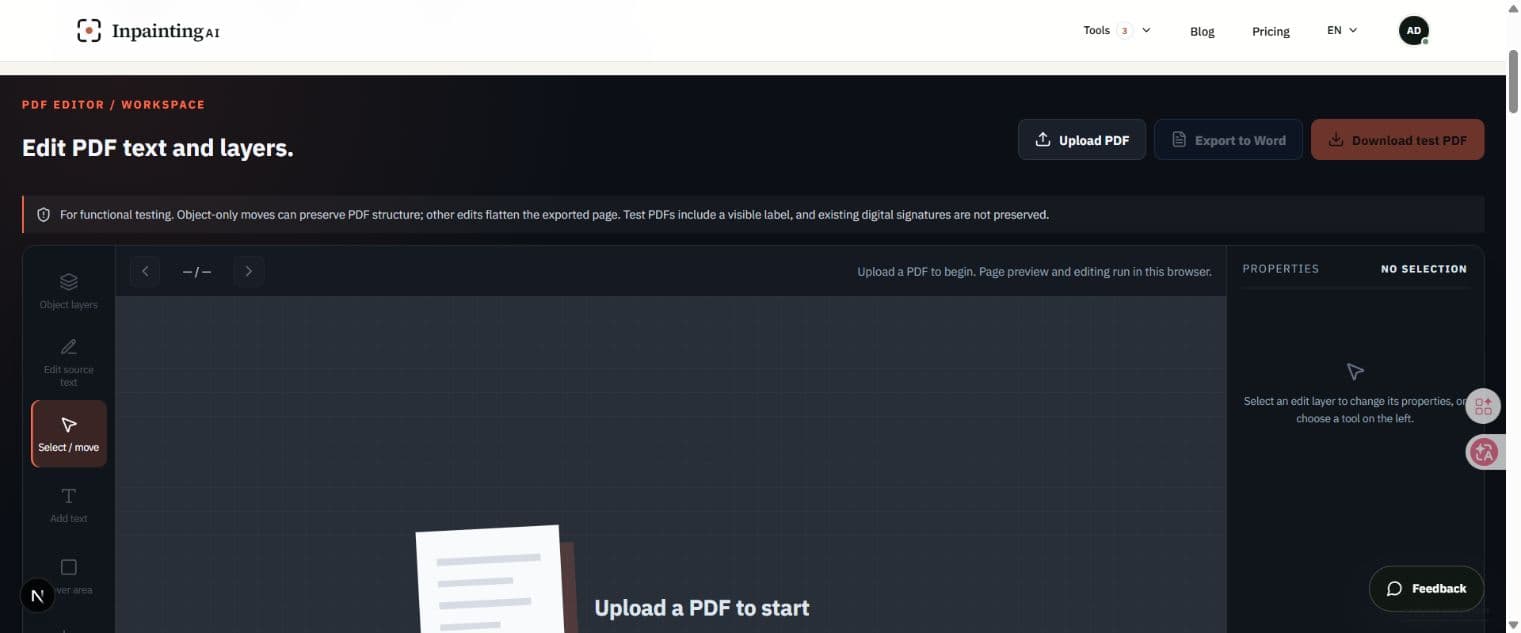
The editor runs in the browser and does not require an account. The workspace places tools on the left, the PDF page in the center, and the selected layer properties on the right.
How to edit a PDF online, step by step
1. Upload the PDF
Select Upload PDF and choose one file up to 20 MB. The first page appears after the browser reads the document and detects available text and object layers.
 1Click Upload PDF, then choose one file up to 20 MB.
2. Select the editing mode
Choose Edit source text for detected text. Choose Object layers for a supported annotation or appearance object. Use Add text, Cover area, Extract / move, or Add image for a visual overlay.
2Choose Edit source text, Object layers, or an overlay tool.3. Edit the selected content
Click a text block and type the replacement in the properties panel. The editor starts with the detected position, font size, color, line height, and width scale. Nearby lines can be grouped when their geometry indicates one multi-line block.
3Select a detected block, then type the replacement in Properties.4. Reposition an object
Select a supported object layer and drag it on the page. Moving a native PDF object preserves the searchable text and table lines underneath more reliably than moving a rectangular screenshot.
4Drag the selected object on the page and check the content below it.5. Review and export
Zoom back to a normal reading size, check alignment and overlaps, then select Download test PDF. Keep the original file beside the exported copy for comparison.
5After checking every page, click Download test PDF.Choose the right PDF editing control
- Edit source text
- Best for a small change to selectable text. Check wrapping when the replacement is longer or shorter.
- Object layers
- Best for a supported independent annotation or appearance object that should move without hiding content below it.
- Add text
- Places a new text overlay. Use it with Cover area when the original content cannot be edited directly.
- Extract / move
- Captures a colored mark and removes a neutral background so overlapping text can remain visible.
- Add image
- Places a PNG, JPEG, or WebP overlay that can be moved and resized.
- Undo / Reset
- Undo reverses the last workspace change; Reset removes the current edit session and returns to the uploaded source.
For financial, identity, contract, or signed documents, treat the export as a new test copy and retain the source PDF for verification.
What to check before downloading
- The replacement text uses a readable size and does not look smaller than surrounding text.
- Multi-line content keeps the intended line breaks and stays inside its table cell or column.
- Moved objects do not cover account data, labels, table lines, or other content underneath.
- Added overlays do not leave a white rectangle or visible capture edge.
- The exported page contains the expected test-copy label and every page is still present.
Limits and troubleshooting
Text cannot be selected
The source is probably an image-only scan or outlined vector text. OCR is not enabled in this version; use an already-OCRed PDF or an overlay edit.
Replacement text looks too small
Select the edited text layer and adjust the font-size control. Also check width scale and line height before exporting.
A paragraph is split into separate lines
The editor groups nearby lines only when their coordinates and spacing indicate one block. Edit each remaining line or use a cover-and-replace overlay for the whole area.
An image hides content underneath
Use a native object layer when available. For page pixels, use transparent single-color extraction instead of moving an opaque rectangular crop.
The visible edit layer is flattened
Cover blocks, replacement text, captures, and added images are flattened for stable appearance, but the hybrid export keeps the source searchable text layer underneath. Object-only moves preserve more of the original PDF structure.
Online PDF editor FAQ
Do I need to sign up?
No. The current PDF editor opens without an account and exports a clearly marked test copy.
Can I edit text directly?
Yes when the PDF contains a selectable text layer. Scanned image-only pages require OCR, which is not included yet.
Can I move a stamp or image?
A supported independent object can be moved directly. A colored mark embedded in page pixels can be extracted as a transparent layer for a visual test copy.
Will the edited PDF look exactly like the original?
Object-only moves preserve structure best. Text replacement and overlays are rendered into a new PDF, so you should compare spacing, fonts, pagination, and image quality before use.
Can I edit tables?
You can edit detected text inside a table and preserve the visible lines, but the editor is not a spreadsheet. It does not automatically recalculate totals or restructure rows and columns.
Does editing keep a digital signature valid?
No. Treat the edited file as a new document and keep the signed source PDF unchanged for verification.
Need to rewrite longer sections or collaborate in Word? Convert the source PDF to an editable DOCX. Read the PDF to Word guide
TRY THE WORKFLOW
Make one precise PDF change, then inspect the whole page.
Start with a non-sensitive copy, choose the editing mode that matches the source layer, and download only after checking the result against the original.
Open the free PDF editor