
An image cutout isolates one useful object from a larger picture. You might need a product, icon, sticker, stamp, badge, or another clearly bounded element without the original background. A transparent PNG lets you place that object on a new layout without carrying a rectangular patch from the source.
The most predictable method is manual. Draw the rectangle yourself, choose the background color, and control how broadly similar shades are removed. This avoids pretending that every photo is an automatic segmentation problem.
What does image cutout mean?
Image cutout combines cropping and transparency. Cropping defines the area you want to keep. Color filtering then makes matching background pixels transparent inside that area. The object remains visible while the old background disappears.
This approach works best when the object has a clear edge and sits on white, gray, paper, or another mostly uniform color. It does not reconstruct hidden pixels or detect a subject. A busy room, fine hair, transparent glass, and long soft shadows require a different tool.




How to cut out an object in four steps
- Upload the clearest source. Open the free image cutout tool and choose a JPG, PNG, or WebP up to 20 MB. Use the largest clean source available.
- Frame the complete object. Drag a rectangle just outside the object edge. You can move the selection, resize a corner, or draw it again.
- Sample the background. Use the color picker or click Pick from image, then select a representative part of the surrounding background.
- Tune and download. Raise tolerance gradually until the checkerboard appears around the object. Stop before pale object details disappear, then download the transparent PNG.
Frame one object and inspect the transparent result.
Open image cutoutChoose a source that matches the method
- The object is complete and not covered by another prop.
- The edge contrasts clearly with the surrounding background.
- The background is white, gray, paper, or another consistent color.
- The shadow is compact and not an important part of the object.
- The image has enough resolution for the intended placement.
A studio product photo on a flat sweep is a strong candidate. A person standing among trees is not. Matching the source to the method is usually more important than pushing the tolerance slider to its maximum.
How color tolerance changes the result
Tolerance describes how close a pixel must be to the selected color before it becomes transparent. A low value removes a narrow range. A higher value includes nearby shades caused by paper texture, compression, or small lighting changes.
Increase tolerance in small steps. Watch both the outside edge and the lightest part of the object. If a pale highlight begins to vanish, lower the value and sample a better background point instead.
What our three cutout tests covered
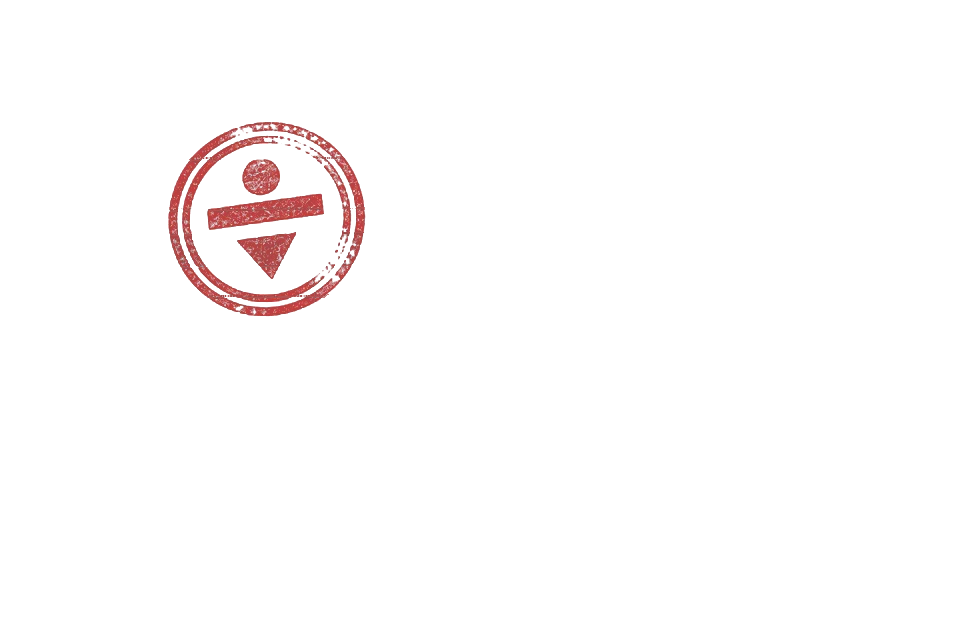
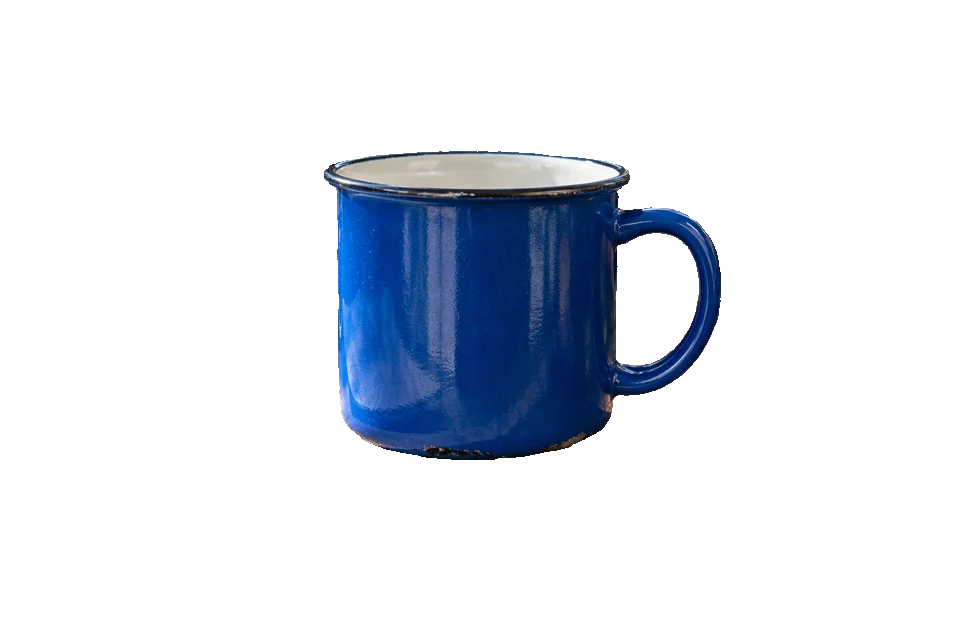
We retained three reproducible input and output pairs beside the implementation. They cover a generated cobalt mug on a pale studio background, a single-color stamp on neutral paper, and a multicolor icon on a warm flat panel. Every case uses the same crop and pixel functions as the browser tool.
The verification report records crop dimensions, transparent-pixel coverage, and opaque-pixel coverage. These measurements confirm that a real alpha channel was created while a visible object remained. They are deterministic technical checks, not subjective quality ratings.
Image cutout, background removal, and object removal
Use image cutout when you want to keep the object
Choose image cutout when you can frame one element and the surrounding color is simple. It is especially useful for icons, stamps, labels, badges, and simple product shots.
Use subject segmentation for complex backgrounds
If you need to separate an image from its background and the scene contains hair, fur, foliage, glass, or layered shadows, use a dedicated background removal workflow.
Use object removal when you want the object gone
The object removal tool solves the opposite problem. It deletes an unwanted object and generates a plausible continuation of the scene. It does not export the selected object.
A quick quality check before download
- The complete object remains inside the crop.
- No rectangular patch of the old background remains.
- Light details remain visible at normal size and 100% zoom.
- The edge looks acceptable on both light and dark backgrounds.
- The downloaded file opens with transparency, not white pixels.
Image cutout FAQ
Can I cut an object out of a photo for free?
Yes. The InpaintingAI image cutout tool is free, requires no login, and processes the image locally in your browser.
Why does the cutout have a colored edge?
The background may contain several similar shades. Sample a representative background area, lower the tolerance, and keep a tighter rectangle around the object.
Can a JPG become a transparent PNG?
Yes. The source may be JPG, PNG, or WebP. The tool exports the selected object as a PNG because PNG supports transparency.
Is image cutout the same as removing an object?
No. A cutout keeps the selected object. Object removal discards it and fills the area where it used to be.
Does this method work on busy backgrounds?
Color-based cutout is intended for plain or nearly uniform backgrounds. Complex scenes, hair, fur, glass, and soft shadows need a subject segmentation tool.




