
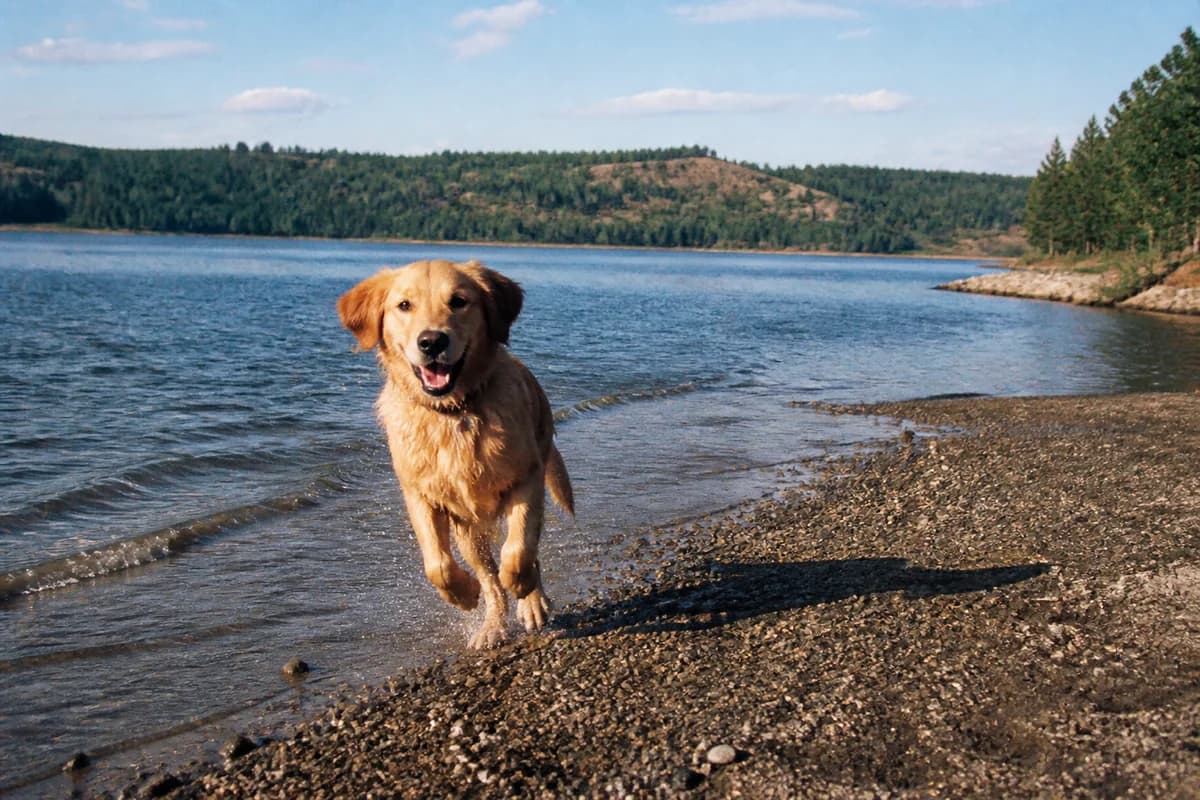
To remove a shadow from a photo, select the complete darkened region—including its soft edge—and rebuild it from the visible surface around it. This works best for a cast shadow on pavement, wall, sand, paper, or another surface with repeatable texture.
When shadow removal works—and when it fails
A hard-edged cast shadow on a wall or ground is usually the clearest candidate. The surface remains visible around the shadow, giving an inpainting model useful color, texture, and perspective cues. A soft shadow crossing a face, patterned clothing, text, or unique detail is harder because the repair must invent information rather than continue a simple surface.
- Good candidate: a single cast shadow on a repeating or plain surface.
- Use caution: a contact shadow touching the subject or a straight structural edge.
- Poor candidate: a broad shadow covering a face, logo, text, or one-of-a-kind detail.
The five-step shadow removal workflow
- Start from the highest-resolution original. Keep an untouched copy so every retry uses real pixels.
- Trace the entire shadow. Brush from the dark center through the gradual penumbra until the surface returns to its normal brightness.
- Protect the subject edge. Include the contact shadow without painting over feet, products, furniture, or other objects that must stay.
- Generate one focused repair. Use the InpaintingAI editor to rebuild a small region before attempting another shadow.
- Compare at two scales. Check overall lighting at normal size, then inspect texture, seams, and repeated detail at 100% zoom.
How to mask a shadow without losing the subject
Shadow boundaries are rarely a single sharp line. Use a brush wide enough to include both the darkest core and the translucent outer edge. If you stop at the obvious dark region, a gray halo can reveal the original footprint after generation.
Where a shadow touches a shoe, product, chair leg, or another subject, zoom in and follow the real edge. A smaller mask protects the object, while a slightly wider mask on the ground gives the model enough room to blend the repaired surface.
Hard cases: faces, patterns, and straight edges
Shadows across faces
Do not expect exact recovery of eyes, skin texture, or identity hidden in deep shadow. Correcting exposure or using another frame is safer when facial accuracy matters.
Brick, fabric, and repeated patterns
Work in short sections and inspect spacing, direction, and scale. A repair can look clean as a thumbnail while repeating one brick or fabric unit at full size.
Rails, frames, and horizons
Preserve the visible line on both sides of the mask. If the generated continuation bends or doubles it, retry with a narrower selection instead of editing the failed result.
Bright reflections are a different problem. Use the dedicated glare removal guide when the unwanted area adds light rather than darkening the scene.
The 30-second shadow-removal quality check
- The shadow and its soft edge are gone, with no gray halo.
- The subject's silhouette and contact point remain intact.
- Texture, perspective, and straight lines continue naturally.
- The repaired patch matches nearby brightness and color temperature.
- No soft blur, repeated pattern, or new object appears at close zoom.
KEEP THE ORIGINAL
Make one local repair, compare, and retry from the source if needed.
Remove a shadow with AI inpaintingFrequently asked questions
Can AI remove shadows from photos?
It can remove a defined cast shadow when nearby texture and lighting provide enough context for a plausible repair. Large shadows over unique detail are less reliable.
Should I remove multiple shadows at once?
Work one shadow at a time. Separate edits make it easier to protect the subject and identify which mask caused an artifact.
Do I need to select the shadow's soft edge?
Yes. Include the penumbra—the gradual transition back to the unshadowed surface—or a dark halo may remain.
Can AI recover texture hidden by a shadow?
It can generate a plausible continuation from surrounding texture, but it cannot reveal the exact pixels that were never recorded clearly.
Is shadow removal the same as glare removal?
No. A shadow reduces incoming light; glare adds a bright reflection. Their masks and corrections differ, so use the glare workflow for bright reflections.





